Toolbars
The CUBIT toolbars provide an effective way for accessing
frequently used commands.
Below is a brief description of each of the available
toolbars. To view a description of the function of each tool,
hold the mouse over the tool in the CUBIT Application to display
tool tips.
Users may customize and
share toolbars.
File
Provides CUBIT (*.cub) file operations. This toolbar also
includes Journal
File operations.

Figure 1. File
Toolbar
From left to right, the tool buttons are as follows:
- New - Issues
a Reset command to begin a new session
- Open -
Displays file open dialog
- Save -
Displays file save dialog
- Import -
Displays import dialog
- Export -
Displays export dialog
- Journal Editor
- Opens the journal editor
- Play Journal File
- Plays a journal file
- Play ID-Less Journal
File - Plays a journal file in Id-less mode
- Pause - Pause the
playback of a journal file
- Custom Toolbar
Editor - Opens the custom toolbar editor
Display
Controls the display mode,
checkpoint
undo, zoom,
perspective
clipping
plane, and curve
valence display options in the Graphics Window.

Figure 2. Display
Toolbar
From left to right, the
tool buttons are as follows:
- Undo On/Off -
Toggle undo functionality on/off
- Undo - Undo last
operation
- Wireframe - View in
wireframe mode
- True Hidden Line -
View in true hidden line mode
- Hidden Line - View
in hidden line mode
- Transparent - View
in transparent mode
- Shaded - View in
shaded mode
- View Geometry -
Toggle geometry display on/off
- View Mesh - Toggle
mesh display on/off
- View BC - Toggle
boundary condition display on/off
- Graphics Composite
- Toggle graphics composite line display on/off
- Refresh - Refresh
the graphics display
- Zoom In
- Zoom Out
- Zoom to Fit
- Toggle Perspective
- Scale - Toggle
display of the scale
- Clipping Plane -
Toggle display of the clipping tool
- Clipping
Manipulation - When clipping plane is active, toggle
clipping tools
- Curve Valence -
Display curve valence in the graphics window
- Overlapping Surface
- Locate (point to) overlapping surfaces in the model
- Enclosed/Extended -
Toggle between enclosed and extended selection mode
- X-Ray - Toggle
x-ray selection mode on/off
-
Selection Shape -
Toggle between box, sphere, polygon selection box
Select
Controls the Entity Selection
Mode for picking or selecting entities.
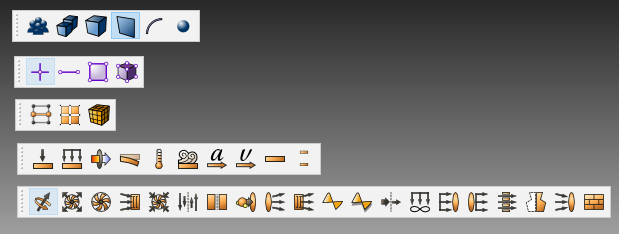
Figure 3. Select
Toolbars
From top to bottom:
- Geometry Selection Filters
- Groups
- Bodies
- Volumes
- Surfaces
- Curves
- Vertices
- Mesh Selection Filters
- Node
- Edge
- 2d (Triangle, Quadrilateral)
- 3d (Hexahedral, Tetrahedral, Pyramid, Wedge)
- Boundary Condition and Material Containers
- FEA Boundary Conditions
- Force
- Pressure
- Heatflux
- Displacement
- Temperature
- Convection
- Acceleration
- Velocity
- Contact Regions
- Contact Pairs
- CFD Boundary Conditions
- Axis
- Exhaust Fan
- Fan
- Inlet Vent
- Intake Fan
- Interface
- Interiors
- Inlet Mass Flow
- Outflows
- Outlet Vents
- Periodics
- Periodic Shadows
- Porous Jump
- Farfield Pressure
- Inlet Pressure
- Outlet Pressure
- Radiator
- Symmetries
- Inlet Velocities
- Walls
