Toolbar Customization
For many years Cubit has provided users with the ability to
create custom tool buttons. These custom buttons launch
pre-defined journal or Python scripts. With the release of Cubit
15.4 this capability has been expanded.
Menu
Importing an
Existing Toolbar
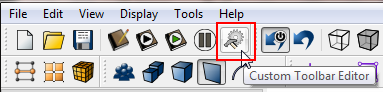
- Locate and press the Custom Toolbar Editor button located
on the File Tools button bar. This will launch the Custom
Toolbar Editor.
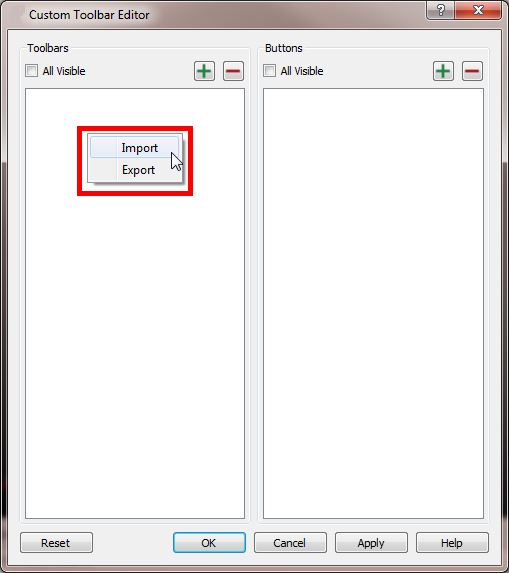
- Select Import from the context menu
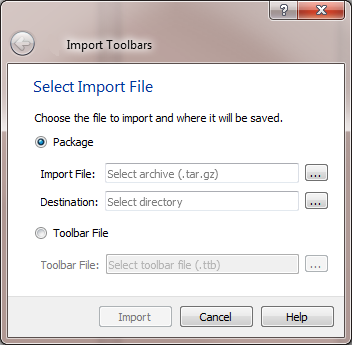
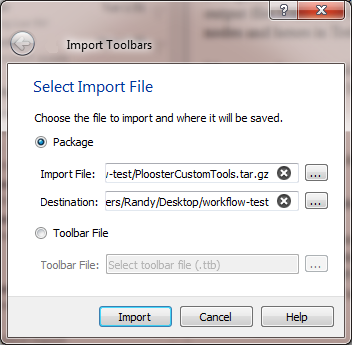
From this dialog a user may import an entire package containing multiple
toolbars or a single
toolbar. In this example we will import an entire package
containing multiple toolbars.
- After selecting import, an import summary is
shown.
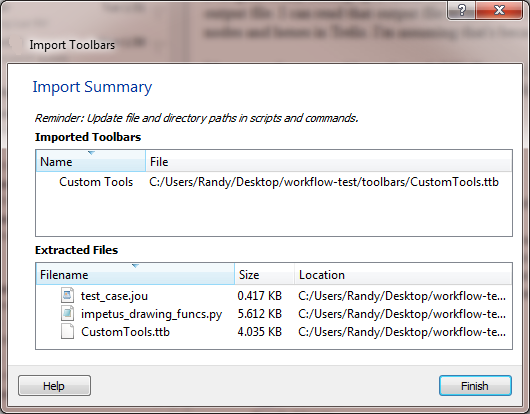
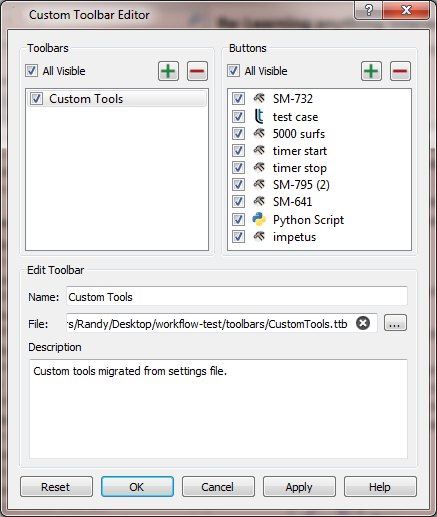
- Select OK to finish
the import
The new toolbar and buttons will be displayed as the last
toolbar on the GUI. It is a docking window so it can be moved and
placed anywhere on the GUI.
Creating a New
Toolbar
- Locate and press the Custom Toolbar Editor button on the
File Tools button bar. This will launch the Custom Toolbar
Editor.
- Press the Add
button
- Name the new toolbar and press OK
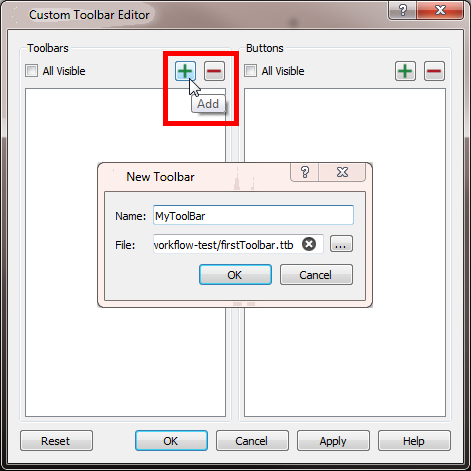
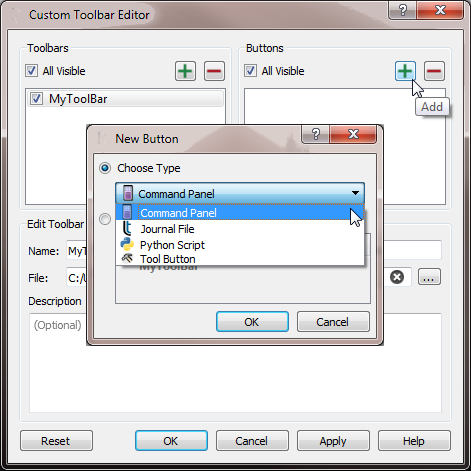
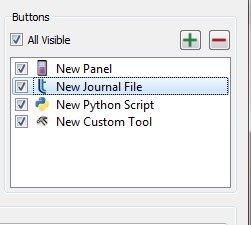
A user may define 4 different
types of toolbar buttons
- Command Panel
- Journal File
- Python Script
- Tool Button
Creating a
Command Panel Button
A Command Panel Button enables users to
launch a command panel with the push of a button. A command panel
button can be defined one of three ways:
Use the definition dialog
- Select Command
Panel from the New Button type pulldown menu
- Press OK
- Complete the dialog indicating
- Press OK to save
the definition and exit the dialog
- Or, press Apply to
save the definition
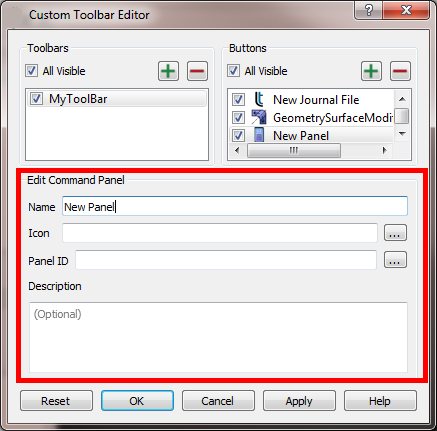
To find the Command
Panel ID:
- Press the browse button next to the Panel ID edit field to
launch the Command Panel
Browser
- Navigate the browser to locate the desired command
panel
- Select the desired command panel
- Press OK to make
the selection
- The Panel ID will be shown in the Panel ID edit field
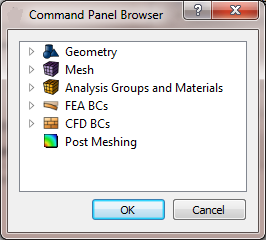
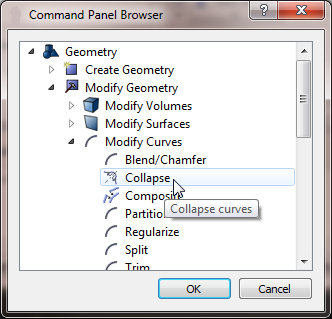
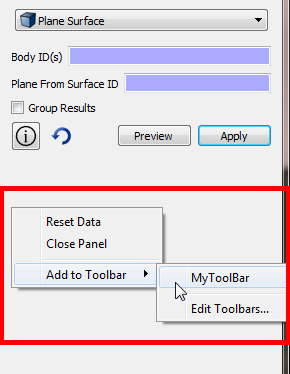
Use the context menu on a command panel
- Show the context menu on a command panel
- Select Add to
Toolbar
- Select the toolbar to which this command panel will be
added
- an icon representing the command panel will be added to the
selected toolbar
Drag a command panel onto the toolbar
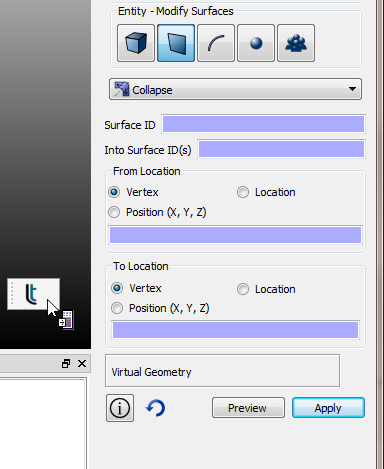
- Using the mouse, "drag" the command panel onto the desired
toolbar
- an icon representing the command panel will be added to the
selected toolbar
- In the image below, the Surface Collapse command panel is
being dragged onto a toolbar
- The resulting toolbar looks like the following

All command panels include a context menu which can be
accessed by clicking on an empty place in the command panel and
using the mouse to show the menu.
Creating a Journal
File Button
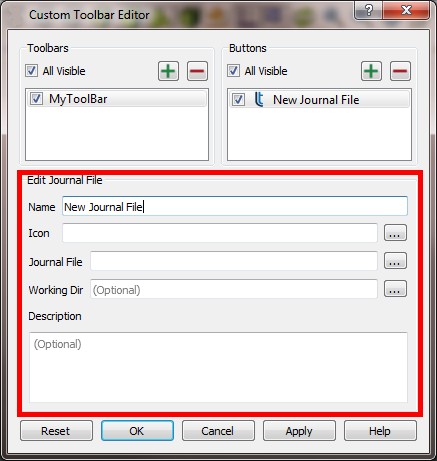
A Journal File Button will launch a journal file when pressed.
The journal file may reside anywhere on the file system. A
journal file button is defined by:
- Select Journal File
from the New Button type pulldown menu
- Press OK
- Complete the dialog indicating
- the name of the button
- the icon to use
- the name of the journal file to play
- an optional working directory
- an optional description of the journal file
- Press OK to save
the definition and exit the dialog
- Or, press Apply to
save the definition
Creating a Python
Script Button
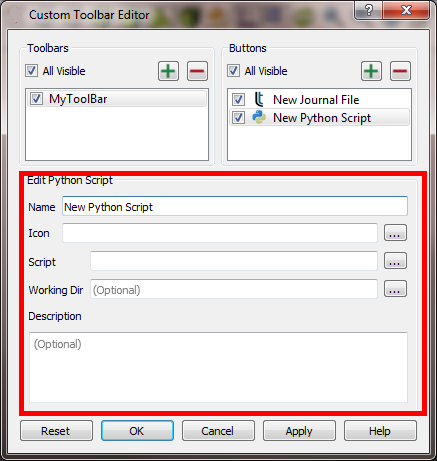
- Select Python
Script from the New Button type pulldown menu
- Press OK
- Complete the dialog indicating
- the name of the button
- the icon to use
- the name of the Python script to execute
- an optional working directory
- an optional description of the Python script
- Press OK to save
the definition and exit the dialog
- Or, press Apply to
save the definition
Creating a Basic
Tool Button
The "Basic" too button has been available to users for many
years. It contains a set of commands that execute when the user
presses the button.
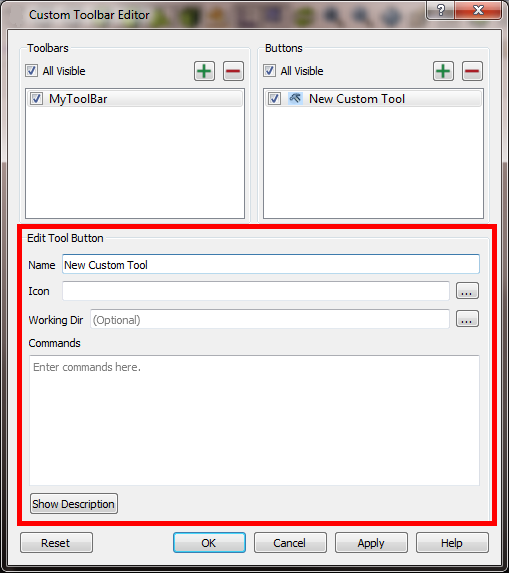
- Select Tool Button
from the New Button type pulldown menu
- Press OK
- Complete the dialog indicating
- the name of the button
- the icon to use
- an optional working directory
- the commands to execute (these are the same commands
used in any journal file)
- an optional description of the commands
- Press OK to save
the definition and exit the dialog
- Or, press Apply to
save the definition
Modifying an
Existing Toolbar
- In the Custom Toolbar Editor select the toolbar to modify
- Press the Add (green plus-sign) button to add a new
button
- Press the Delete (red minus-sign) to remove a
button
- Select the check box to hide or show the button
- Change the button
order by selecting a button in the Buttons dialog
and dragging to a new position
- Any other parameter may be modified using the Edit Tool
Button dialog
- Press OK to
save the definition and exit the dialog
- Or, press Apply
to save the definition
Exporting a Toolbar
A user may want to share a toolbar, or a set of toolbars, with
another user. This is easily accomplished.
- Launch the Custom Toolbar Editor dialog by selecting the
 icon.
icon.
- Or, select the Edit
item from the toolbar's context menu
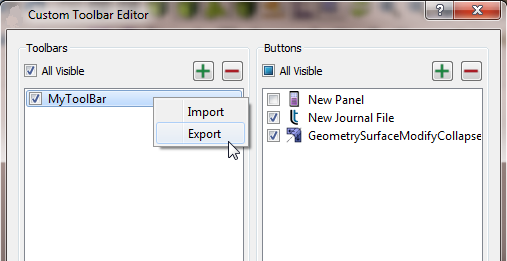
- Select Export from
the context menu
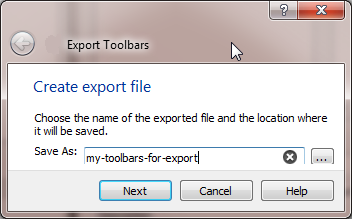
- Provide a file name to the Export Toolbars dialog. The file
extension will be appended automatically
- The file type will be .tar.gz
- Click Next on the
dialog
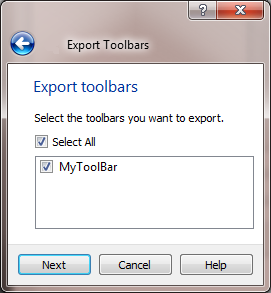
- In the next dialog select the toolbars to be included in
the export
- Click Next on the
dialog
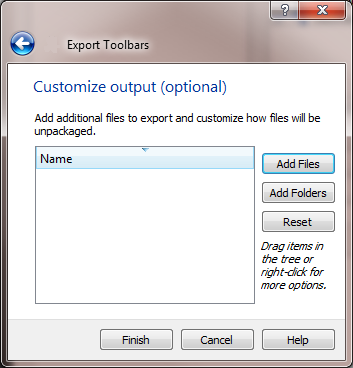
- Optionally add files or folders that contain journal files
or Python scripts referenced by tool buttons
- Click Finish in the
dialog
- Look for the .tar.gz file in the designated
folder