Model Tree
The model tree
provides a complete graphical hierarchical representation of the
parent child relationship of all geometric entities. The tree is
populated as the model is constructed by Cubit. In addition to
showing a hierarchy of geometric entities, the tree also shows
active Groups, Boundary Layers, and active Boundary
Condition entities.
The tree works directly with the graphics window and picking.
Selecting an entity in the tree will select the same entity in
the graphics window. Selecting an entity in the graphics window
will highlight the tree entry if that entry is currently visible.
If an entity's visibility is turned off, the icon next to that
entity in the geometry tree will disappear.
If the tree entry is not visible the user may press the Find
button located at the bottom of the tree. The first occurrence of
the selected entity will be shown on the tree.
Virtual entities have a small (v) after the name to indicate
that they are virtual entities.
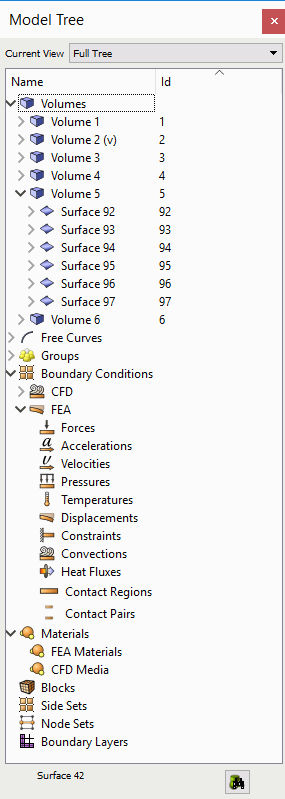
Figure 1. Geometry
Tree Window
Drag and Drop
The Tree View window supports drag and drop of geometric
entities into existing boundary condition sets. To create
boundary conditions, see the Materials and Properties menu on the
main control panel, or right-click on one of the boundary
condition labels and select the "Create New" option from the
context menu. Geometric entities or groups can be added to
blocks, nodesets, or sidesets by dragging and dropping inside the
tree view window.
Picked Group
The current selections in the graphics window can be added to
a "picked
group" by selecting the "Add to Picked Group" from the
Right click
menu. Selections can also be added to the picked group by
dragging and dropping onto the group from the geometry tree
window. The picked group can be substituted into any commands
that use groups. To remove an item from the picked group, use the
"Remove from Group" option in the right click menu in the
geometry tree or from the graphics window.
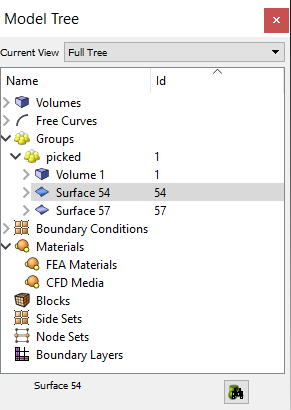
Figure 2. Picked
Group
Right-Click Menu Functions
The geometry tree's context menu is sensitive to the type of
item and the number of items selected. Functions that apply to
the item type and number of selected items are available from
the context menu. These include the following:
- Zoom
To - Available for all geometric entities
- Rotate
About - Change the center of rotation to the centroid
of the entity without zooming
- Fly-In - Animated zoom
feature
- Locate - Labels the selected
entity in the graphics window
- Draw - Draw this entity by
itself.
- Isolate - Similar to Draw
command, but the display will not be refreshed with a graphics
reset. To redisplay the model, select All Visible from the
graphics window right-click menu.
- Transparency On/Off - Toggles
transparency mode
- Visibility On/Off - Toggles
visibility
- Rename - Allows you to rename
entities from the tree. Clicking on a highlighted
entity in the tree will do the same thing. This will also work
for boundary condition entities (blocks, nodesets and
sidesets)
- Mesh - Mesh selected entity at
current settings.
- Delete
Mesh - Available for meshed entities
- Reset
Entity - Deletes mesh, and returns all settings to
default values.
- Delete - Available when Volumes
and Groups are selected.
- Measure - Available when two
entities are selected or 1 curve is selected
- Refresh
Full Tree - Used to return to main tree
- Collapse
Tree - Available when entities are selected.
- View
Descendants/Ancestors - Show this entity's individual
hierarchy. Use the Refresh Full Tree option to return to main
tree view.
- View
Neighbors View adjacent entities. Use the Refresh Full
Tree option to return to the main tree view.
- Create
New Volume - Available when the user right-clicks over
the Volumes (parent) label. Opens the geometry-volume-create
panel
- Import
Geometry - Available when the user right-clicks over
the Volumes (parent) label. Opens import dialog.
- Create
New Group - Available when the user right-clicks over
the Groups (parent) label.
- Clean
Out Group - Available when groups are selected.
Removes all entities from group.
- Remove
from Group - Available when groups are selected.
Removes selected entity from the group.
- Add
Selected to Block/Nodeset/Sideset - Add the selected
entity in the graphics window to the chosen block, nodeset, or
sideset in the geometry tree.
- Delete
Selected from Block/Nodeset/Sideset - Delete the
selected entity in the graphics window from the chosen block,
nodeset, or sideset in the geometry tree.
- Create
New Block/Sideset/Nodeset - Available when the user
right-clicks over the respective Boundary Conditions (parent)
label.
- Create
New <boundary condition> - Available when
highlighting desired boundary condition in the tree including
CFD and FEA boundary conditions.
- Draw
Block/Sideset/Nodeset - Draws the selected
block/nodeset/sideset on top of existing entities
- Draw
Sideset/Nodeset Only - Draws the selected
nodeset/sideset independent of other entities
- Delete
Selected Boundary Condition - Deletes any selected
boundary conditions
- Draw
Selected Boundary Condition - Draws selected boundary
condition by itself
- Draw
Selected Boundary Condition (Add) - Draws multiple
boundary conditions
- List
Selected Boundary Condition - Lists information about
selected boundary conditions in the command line window
- Remove
from Block/Sideset/Nodeset - Removes selected entity
from the specified block, sideset or nodeset
- Cleanup
(Tets) - Issues cleanup command for selected block.
Only applicable for blocks composed of tet elements
- Remesh
(Tets) - Issues remesh command for selected block.
Only applicable for blocks composed of tet elements
- List
Info - List information about selected entity in the
output window.
