Mesh Quality Tools
The mesh quality tool is located in the entity tree window
under the quality tab. The Mesh Quality Tool works on meshed
entities to analyze mesh quality based on selected metrics.
Output from the mesh quality analysis can be visualized using
color-coded scales. The mesh quality tool also contains tools to
improve mesh quality including smoothing, refinement, node
merging, mesh validation, deleting mesh elements, and
repositioning nodes.
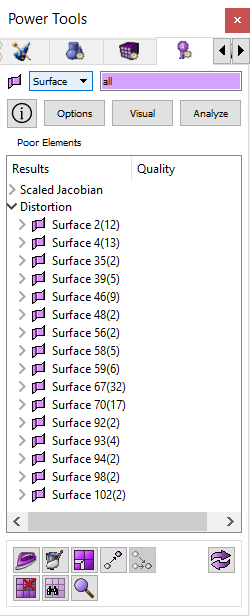
Figure 1. Mesh Quality Tools
Entity Type - The
mesh quality tools can only be applied to mesh entities including
volumes, surfaces, hexahedra, quadrilaterals, triangles, or
tetrahedra.
Help Button -
Opens context specific help for this topic.
Options Button -
Clicking on this button will show the Tools>Option menu dialog
that allows users to manually enter metric range settings. The
settings are persistent between sessions. For a description of
quality metrics and default ranges click on one of the following
links:
Visual Button -
Clicking on this button will open the Mesh/Entity/Quality command
panel specific to the entity selected. To visualize elements in
the graphics window based on a color-coded quality scale, you
must select the entities to visualize and check the "Display
Graphical Summary" check box. Once that box is selected, you must
also make sure the "Draw Mesh Elements" option is selected. Then
press the Apply button
Analyze Button -
This button starts the quality processing based on the
metrics/filters selected.
Output Window/Tree
- The failed elements are shown in the tree under the heading
"Poor Elements". For each metric/filter the output will be listed
in a tree format with the following nodes.
- The top node on the tree is the name of the metric.
- The next node under is the owning volume or surface when
volumes or surfaces are analyzed.
- The next node will be categories or groups of elements.
Possible categories are:
- All Above Threshold - represents all mesh elements
above the quality threshold upper range
- All Below Threshold - represents all mesh elements
below the quality threshold lower range
- Top "n" - This will expand into a list, up to 50
elements long, of the worst offending elements above the
upper threshold range.
- Bottom "n" - This will expand into a list, up to 50
elements long, of the worst offending elements below the
lower threshold range.
- At the lowest level of the tree are mesh elements.
The mesh elements can be sorted by quality or by numeric
order. To change the way items are sorted, click on the headings.
The right-click or context menu will show various remedies
depending on what is selected. Performing an operation on a
parent node will perform the same operation on all of the child
nodes.
Mesh Quality Tool Buttons
The buttons on the bottom of the mesh quality tool window are
some of the tools you may use to improve mesh quality and
include.
- Smooth Button -
Opens the Mesh>Entity>Smooth panel
- Refine Button -
Opens the Mesh>Entity>Refine panel
- Move Node -
Opens the Mesh>Node>Move Node panel
- Merge Node -
Opens the Mesh>Node>Merge Node panel
- Delete Mesh
Element - Deletes selected mesh entity
- Validate Mesh -
Issues the validate mesh command
- Check Coincident
Nodes - Issues the check coincident nodes
command.
- Refresh
Graphics
Right-Click Context Menu Items
- Draw - issues a
draw command for any tree node below the metric name.
-
Color Code -
Issues a
'quality .... draw mesh' command for any tree node below
the metric name
- Locate - Issues
Locate for volume/surface/hex/quad/tet/tri. The locate command
will draw and label selected entities in the graphics
window.
- Fly-In - Issues
Fly-in for volume/surface/hex/quad/tet/tri. The fly-in command
is an animated zoom feature.
-
Zoom to - Issues
Zoom
command for volume/surface/hex/quad/tet/tri
- Rotate About -
Issues Rotate About command for
volume/surface/hex/quad/tet/tri
- Vis on/off -
Issues visibility on/off for volume/surface
-
Smooth - Issues
generic
smooth command for volume/surface/hex/tet
-
Smooth Surface
Parent - issues a
smooth surface command for the surface parents of
selected quads and tris.
-
Delete
Mesh - issues delete mesh
propagate command for vol/surf
-
Delete Elements -
issues delete
element command for mesh entities in all categories except
'all'
-
Validate mesh -
validates
selected volume or surface
-
Check Coincident
Nodes - checks for
coincident nodes on volume or surface
-
Smooth Panel -
brings up the correct
smooth panel depending on what's selected
- Smooth Surface
Panel - bring up the smooth surface panel with correct
surface ids for selected quads and tris
-
Merge Node Panel
- brings up the panel to
merge nodes
- Move Node Panel
- brings up the panel to move nodes
-
Reset Graphics -
resets
the display
